
Seller FAQ’s
Participating in a TeamFund Fundraiser and have questions?
Search below for more information about ordering, payments, and pick-up.
Seller FAQ
- Seller FAQ
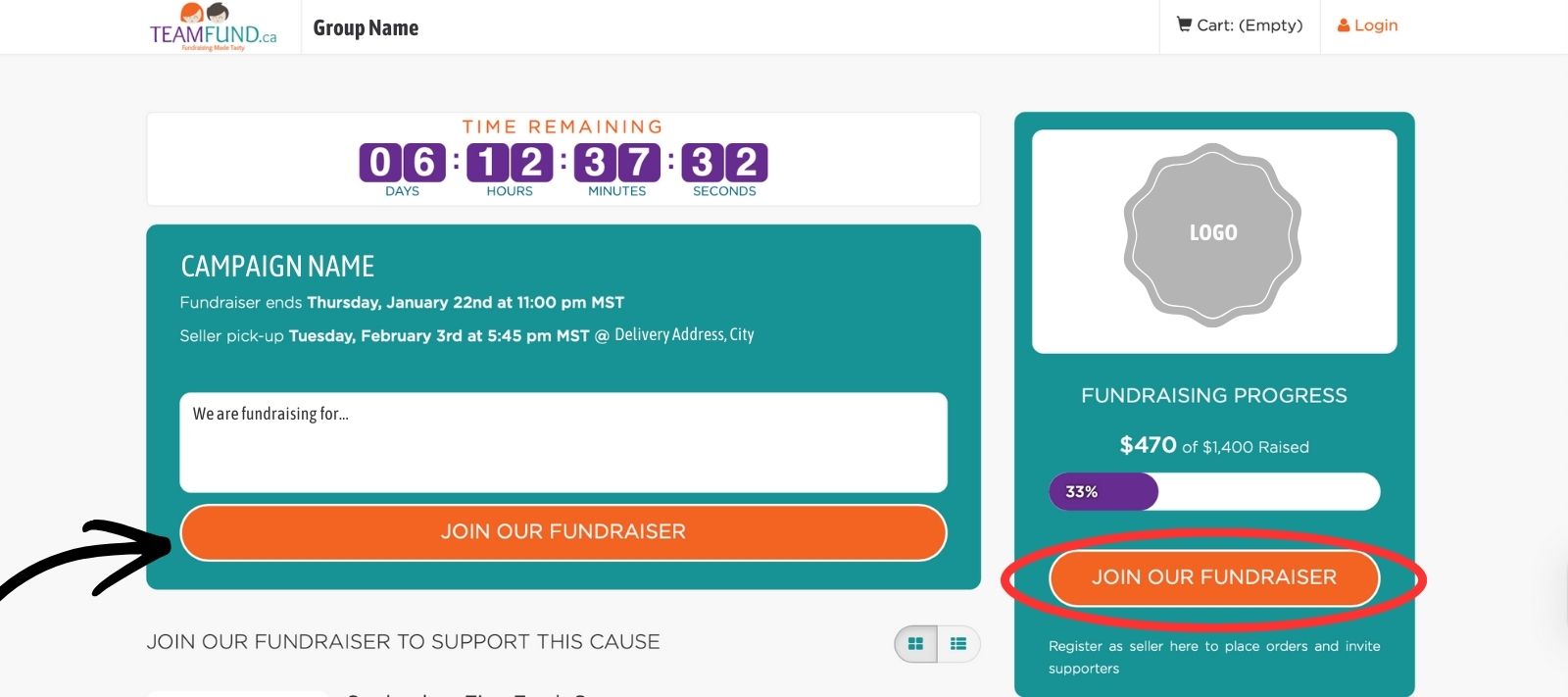
- How can I place an order? Why am I a seller?Sellers are used to track participation and profits per individual. Once you have joined the campaign, you can invite supporters.
Click JOIN OUR FUNDRAISER
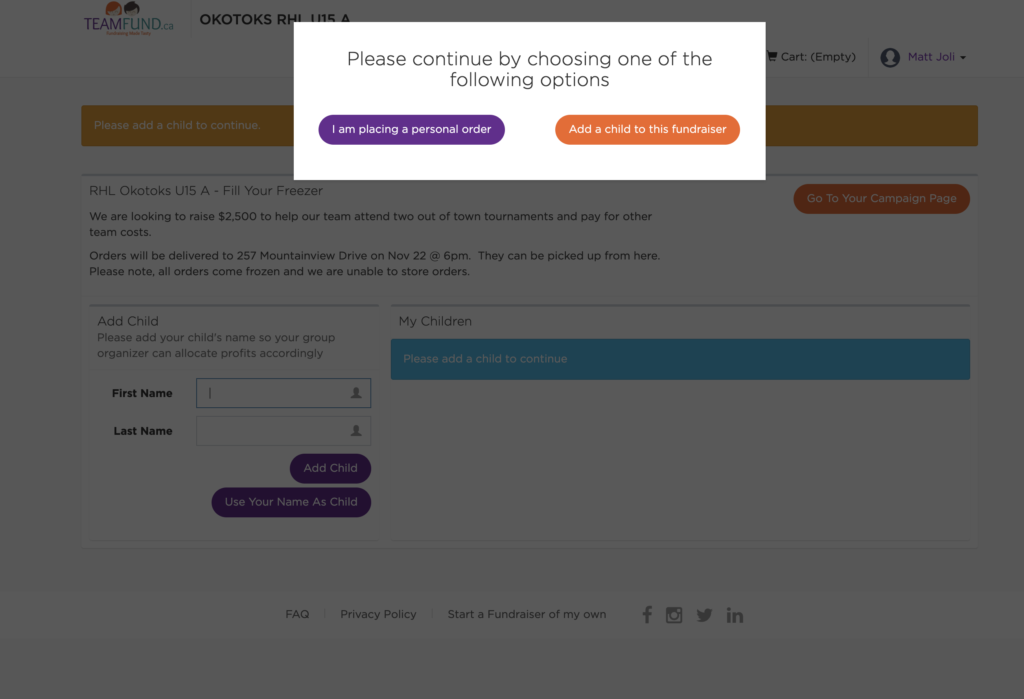
Want to add a child to the campaign / invite friends to support you? (track profits + share a personal link)
Choose “Add a child to this fundraiser” – orange button
Want to place a personal order? (general fund)
Click “I am placing a personal order” – purple button
Joined as a seller by mistake or need to change who an order supports?
Contact the fundraising organizer to request they move the order / remove the seller.
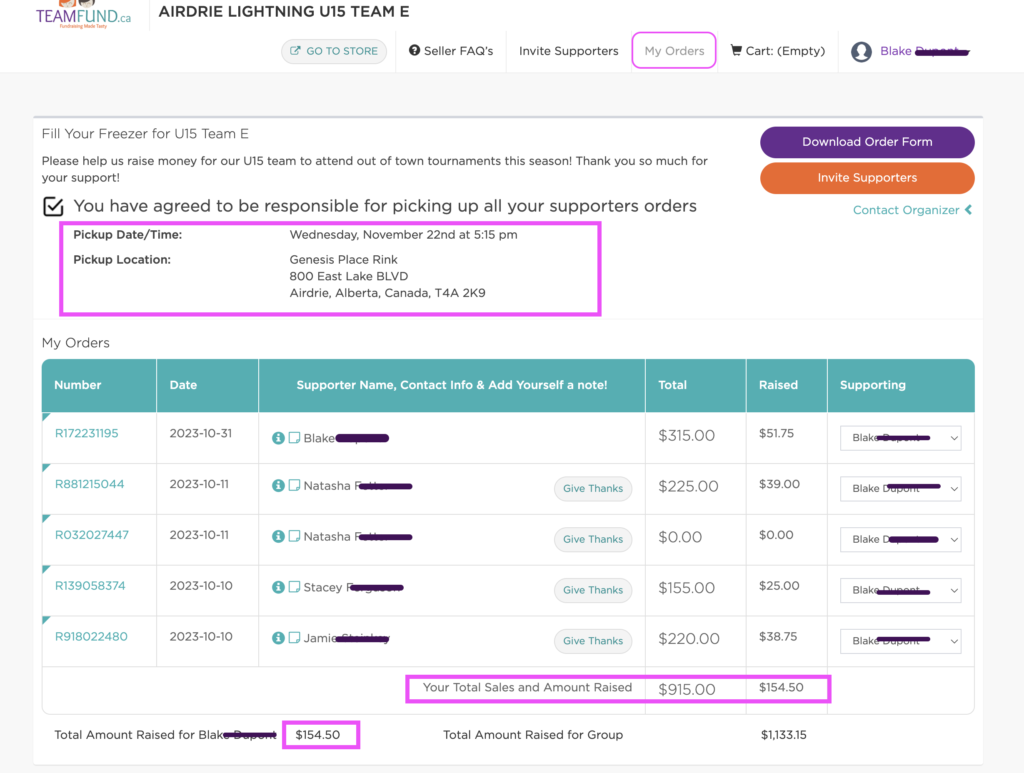
- Are all of my orders and profits tracked?Yes! We keep track of sales and profits per seller and give you a report when the campaign ends. The organizer will also have access to this information.
- Anyone who places an order with your personal link will have an order under you.
- You can track all your orders and profits in your “My Orders” tab.
- How do I edit my account information or the display name on my campaign page?
- Log in to your Seller Dashboard
- Click your account icon (top right) and select My Account
- Click the edit icon
- You will see your name and email: Click into the box to edit
- Select Update to save your changes
NOTE: For safety and security reasons, we do not display the children’s names anywhere. Adding names under “Children” is used for organizational purposes only.
Want your campaign page to show your child’s name instead of yours? Update the Name field in My Account using the above steps.
Need to add or edit a child’s name? Visit this FAQ
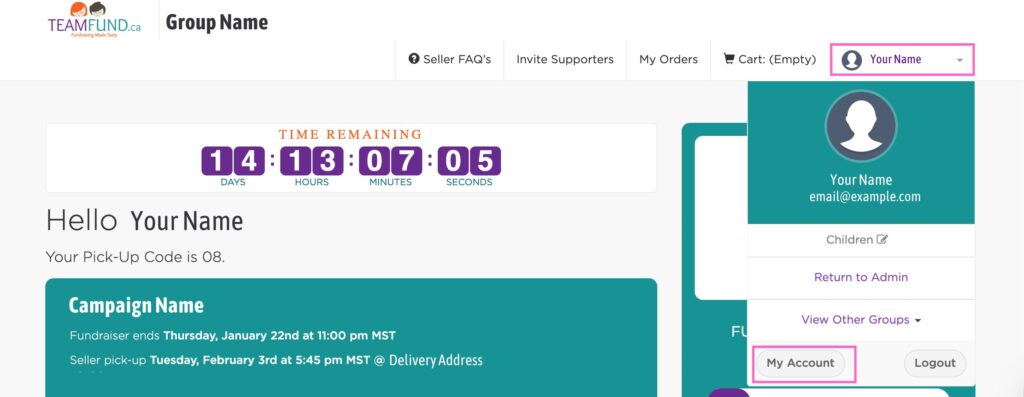
Navigate to “My Account” 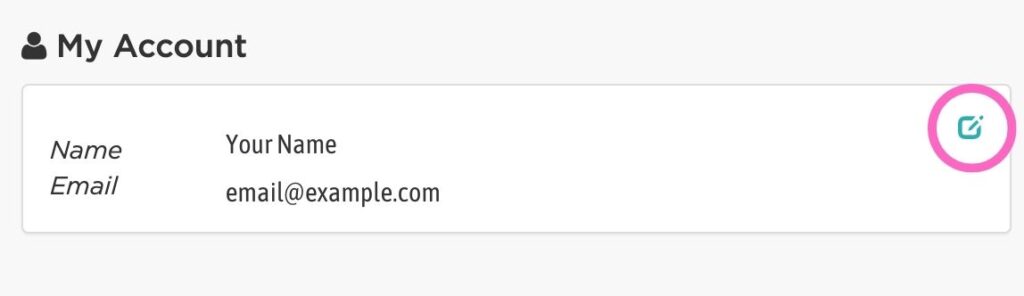
Click the “edit” icon 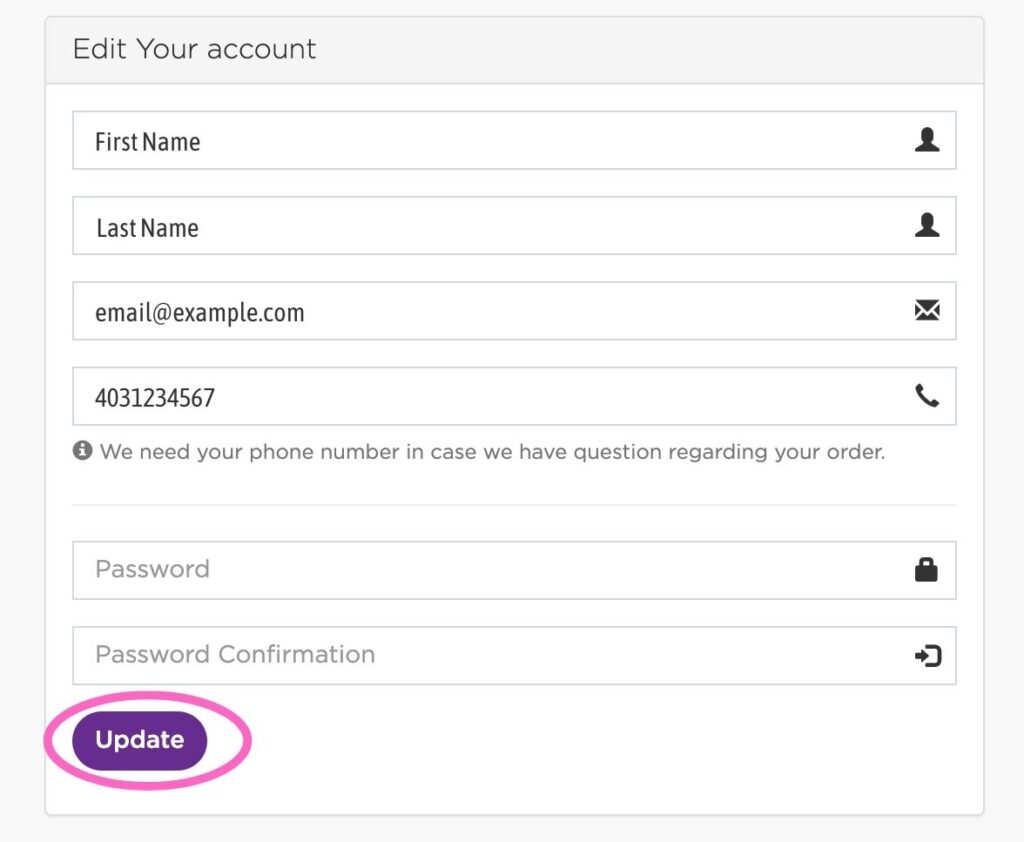
Click into the box to edit details and click “Update” to save - I am missing an order placed from a buyer, is there some way to move it?If a supporter placed an order to support you, but you do not see it under your “My Orders” tab, they may have joined as a seller instead by error. There is an easy fix.Your organizer can quickly move this order under your account; here is what you need:
- Contact your organizer by going to the “My Orders” tab and clicking on Contact Organizer.
- Email them with the order number or contact info of the buyer you wish to have moved.
- The organizer can see all the orders placed on the fundraiser, so giving them as much information as you can like the buyer’s name & order number to helps speed things up.
**You are responsible for all orders in your “My Orders” tab.
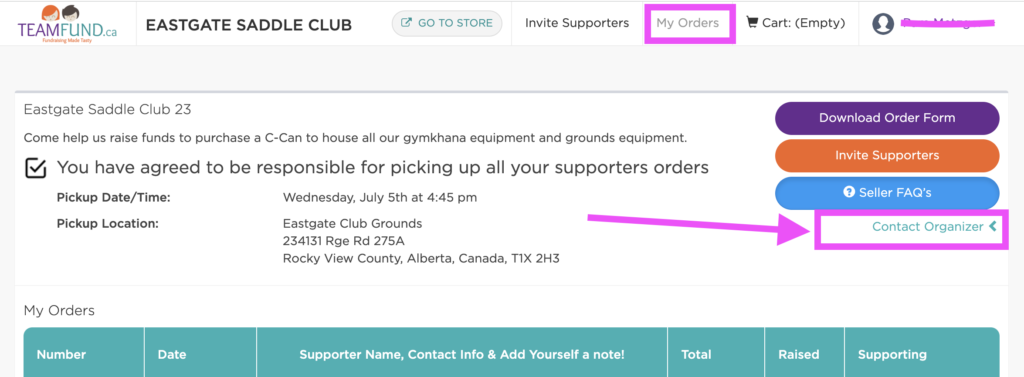
- How can I contact the organizer?You can contact your organizer anytime to make seller pick-up arrangements or for any reason.
- Visit the “My Orders” tab
- Click on Contact Organizer.
- Where can I download or print a paper order form? How can I place an order for my supporter?You may prefer to print an order form and collect paper orders from your supporters. This is good in a work setting when your kids want to approach family members or other situations.
You can download and print a paper order form by heading to your MY ORDERS Tab and clicking DOWNLOAD ORDER FORM. This will generate a personal order form with your name and all details.
- Note that there will also be a QR code so your buyers can scan and make a purchase on the spot under your name!
- This is ideal for parents with children wanting to sell door-to-door or with family.
- When you are done collecting paper orders, you can place the orders in your MY ORDERS tabs and click QUICK ORDER.
- Make sure to use the supporters name, you pay for the order and they pay you back.
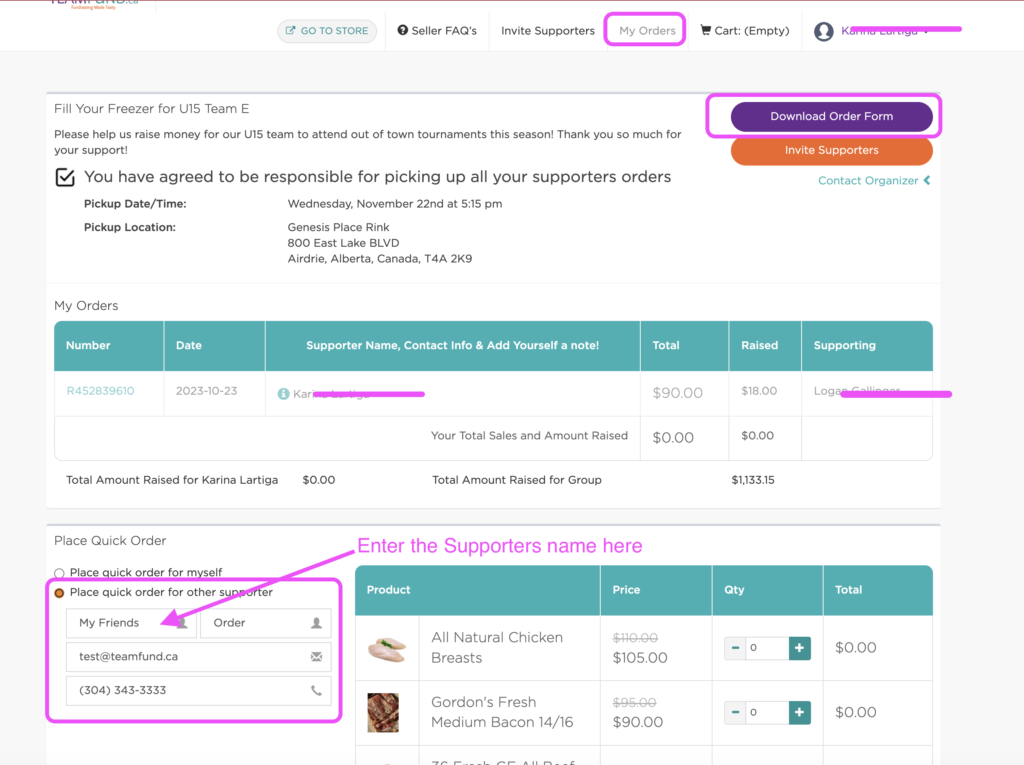
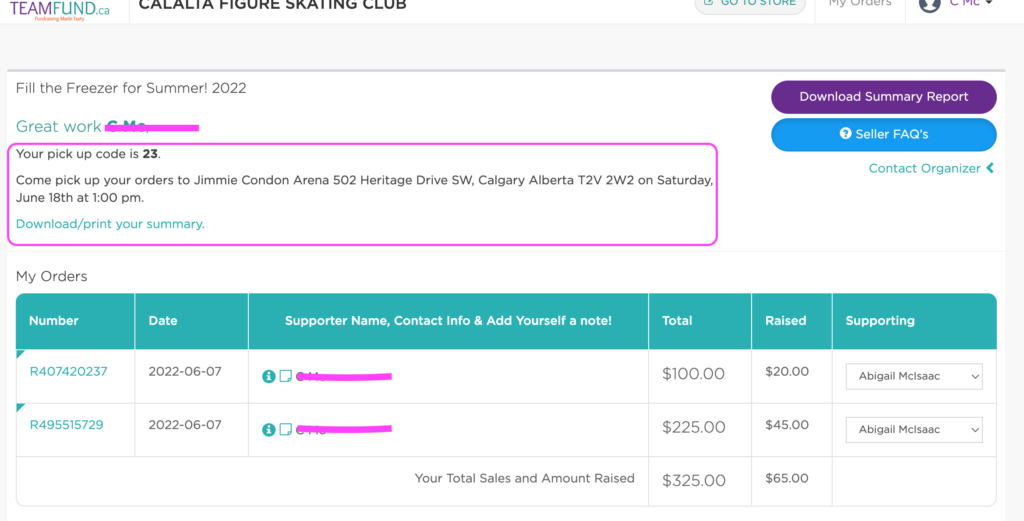
- How and where do I pick up my order?You can view where to pick up your order by clicking the MY ORDERS tab on your campaign page.
Once your fundraising campaign ends, you will be emailed a seller report and your pickup code. You will tell the organizer that code when you arrive at the pickup location and time to receive your order.
You will be emailed three times as a reminder as well.
**You will need your seller pick-up code: display it on your phone at pick-up time.
Login here: fundraisers.myteamfund.ca
- I am having problems placing an order, what do I do?TeamFund accepts these forms of payments: Visa, Mastercard, Visa debit and Paypal.You DO NOT need a Paypal account to place an order, nor do you have to sign up for an account.Accepting terms: To proceed with a purchase, Paypal requires that their terms are accepted.**This does not mean you are creating a Paypal account.Trouble placing an order?Here’s how to fix that:
- Most effective and likely to work immediately: Clear your cache and cookies on your browser. (You can google how to do that, as there are so many different browser types!)
- Try to place an order from another device where you may not have ever used Paypal In the past.
This issue can happen when the buyer likely had a Paypal account at some point and their device or computer “remembers” that — so it defaults to trying to get you to use Paypal.
- Can we accept late orders?We are NOT able to take late orders once the fundraiser has ended.
- How do I add or edit a childs name?
NOTE: Adding or editing a childs name will not change the name shown on your campaign page. This feature is used for organizational purposes to keep track of funds raised per child.
To update your campaign display name, visit this FAQ
How do I add or edit a childs name?
- Log in to your Seller Dashboard
- Select the Account Icon in the top right
- Click “Children”
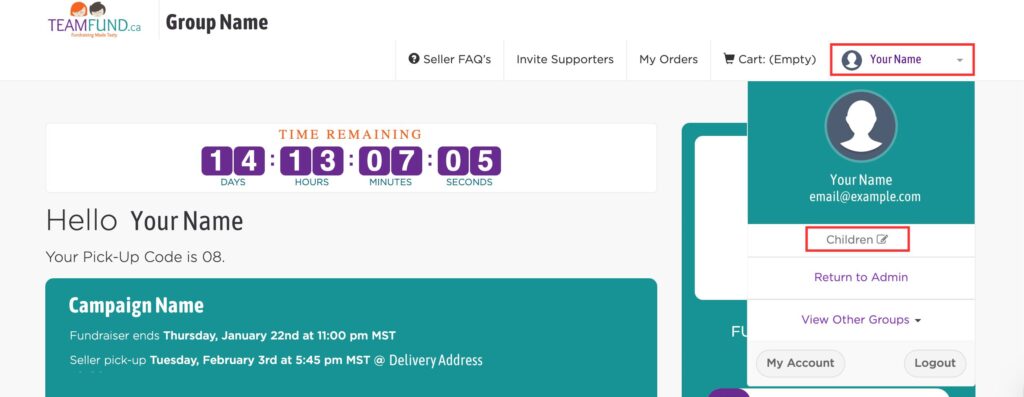
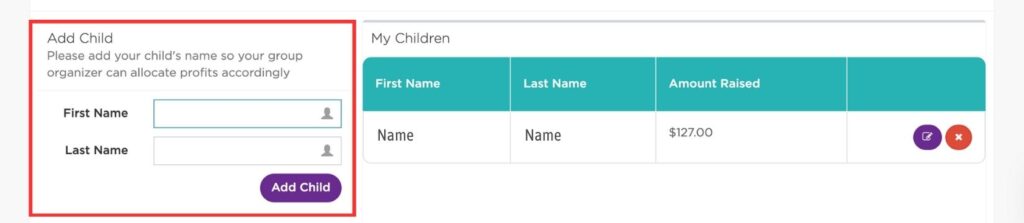
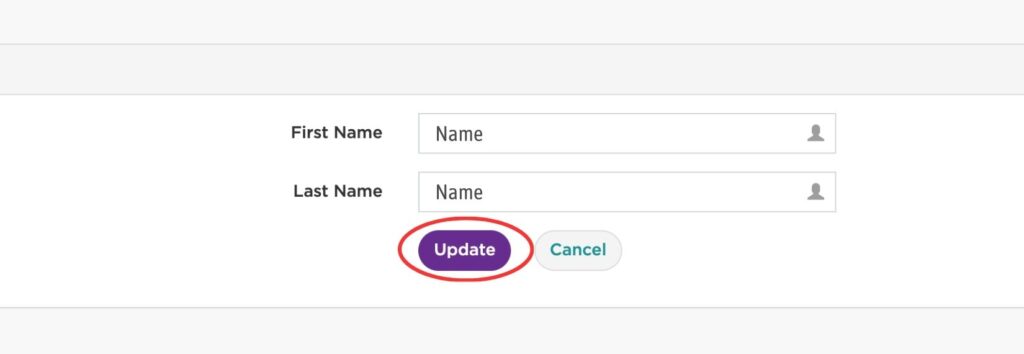
- To Add a Child: Enter their first and last name on the lefthand side and press “Add Child” to save your changes
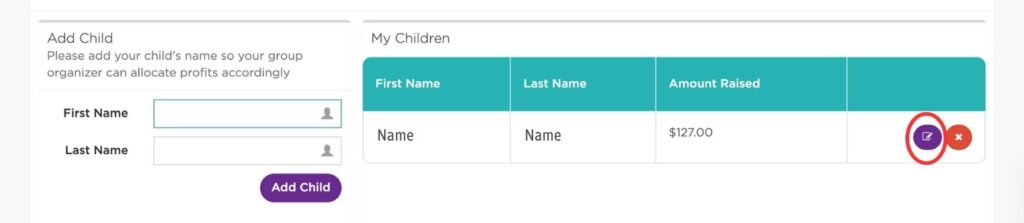
- To Edit a Child’s Name: Click on the purple edit icon, change the name, and then click “Update” to save your changes
- How do I find my personal link to share with supporters?
To find your personal link, make sure you have joined the fundraiser .
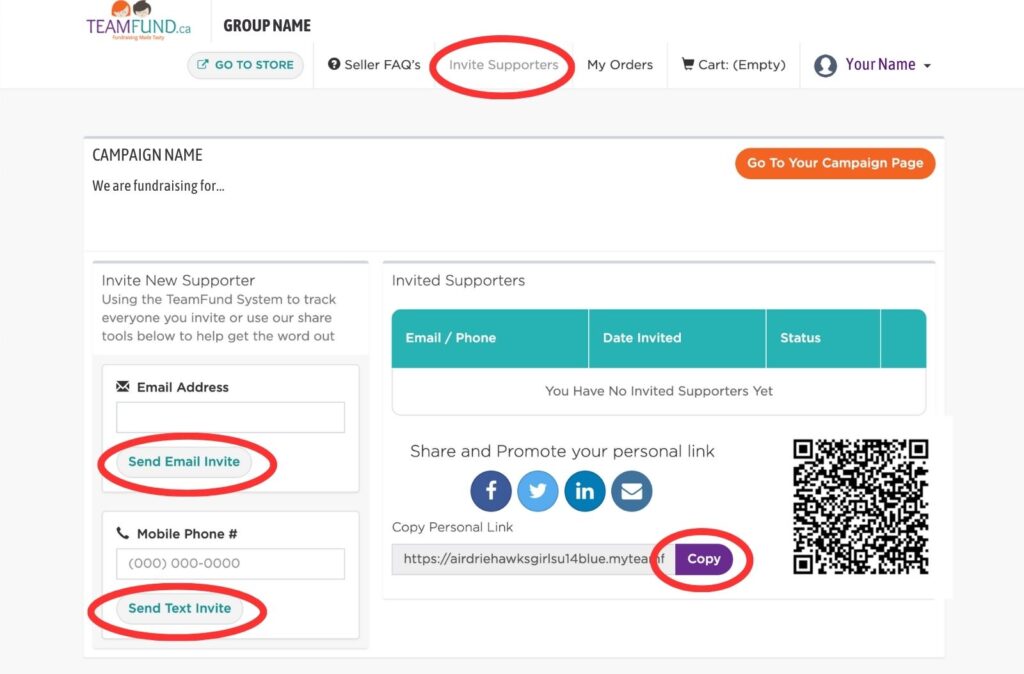
- Log in to your account and click “Invite Supporters”
- Click “Copy” next to your personal link
- Share with friends, family or on your social media!
You can also send the link directly to supporters:
- Email: Type their email into the box and click “Send Email Invite”
- Text: Type their phone number in the box and click “Send Text Invite”
Did your supporter join as a seller by mistake?
Contact the fundraising organizer to request they move the order to your name + remove them as a seller.
- Managing Sellers & Orders
- I want to refund, edit, change my order, I ordered the wrong item or cancel my order.
All orders are considered final sale, even if your fundraiser has not yet ended.
Please take a moment to carefully review your order before submitting payment.The checkmark at checkout is provided so you can double-check that everything is correct.
Because of how our payment processor (PayPal, including Visa and Mastercard) works, any refund processed at our discretion will have a 4% fee deducted. Unfortunately, as a small business, we cannot absorb these costs.
TeamFund is unable to edit, exchange, or change orders once they are placed without applying this 4% fee.
We truly appreciate your understanding and support in helping us keep fundraisers running smoothly.
Want a refund during a running campaign? Email us: mailto: info@teamfund.ca Have your order number ready.
- How do I add or edit a childs name?
NOTE: Adding or editing a childs name will not change the name shown on your campaign page. This feature is used for organizational purposes to keep track of funds raised per child.
To update your campaign display name, visit this FAQ
How do I add or edit a childs name?
- Log in to your Seller Dashboard
- Select the Account Icon in the top right
- Click “Children”
- To Add a Child: Enter their first and last name on the lefthand side and press “Add Child” to save your changes
- To Edit a Child’s Name: Click on the purple edit icon, change the name, and then click “Update” to save your changes
- Contact TeamFund
- Complaints and Inquiries
Important: Product Inspection and Complaint Process
Please inspect your product immediately upon delivery to ensure it meets quality expectations.⚠️ DO NOT DISCARD ANY PRODUCTS
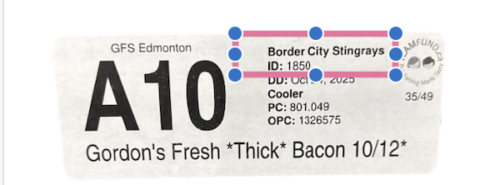
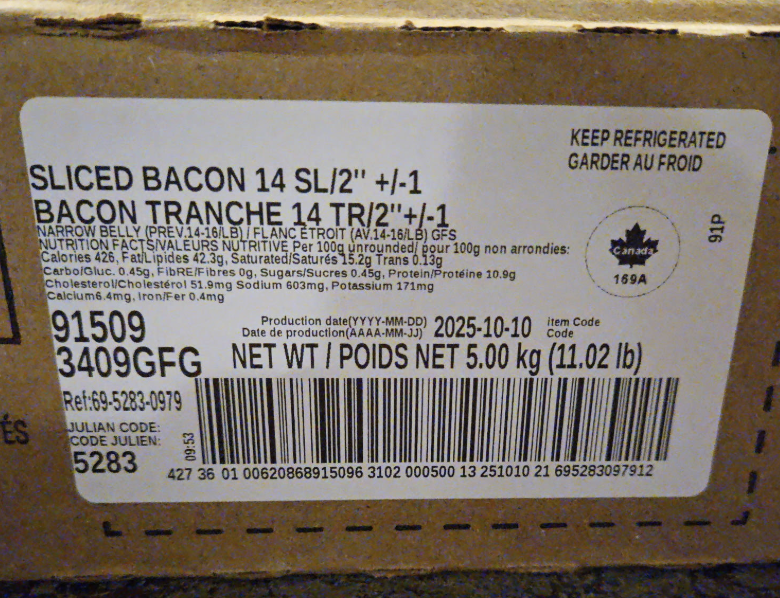
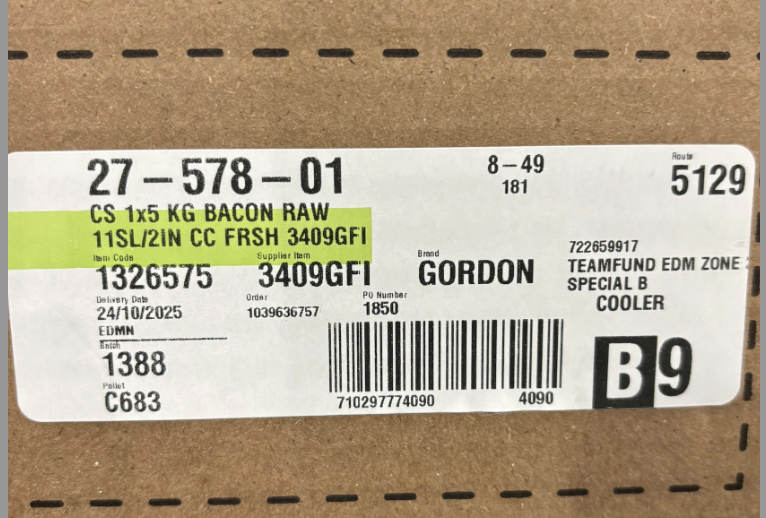
⚠️ MAKE SURE TO TAKE AT LEAST 3 PHOTOS FOR YOUR COMPLAINT: (See below for images)
- THE EXTERIOR OF THE BOX WITH ALL LABELS FOR TRACEABILITY (THIS MAY BE 2-3 PHOTOS ITSELF)
- THE INSIDE OF THE BOX WITH REMAINING PRODUCT
- THE ACTUAL PRODUCT THERE IN AN ISSUE WITH, COOKED OR UNCOOKED
Reporting an Issue
If you have concerns about a product you received, you must contact TeamFund within four (4) days of delivery. We are unable to process any complaints submitted after this window.
To report an issue, email info@teamfund.ca with:
1. Order number (begins with “R”) and the email address used for the order
2. Photos of the outer box, including all labels and stickers (this is required for traceability) SEE BELOW FOR IMAGES
3. Photos of the affected product showing the issue clearly SEE BELOW FOR IMAGES
4. A brief description of the problem so we can coordinate with the appropriate vendor
🚫 Do not discard the product. We cannot replace items that are no longer in your possession.
Please note the following conditions:
We can only work directly with the original buyer, not third parties or supporters.
Because TeamFund is a fundraising platform and groups earn profits from each sale, we can only offer replacements—no refunds.
Do not contact vendors directly. All transactions are processed through TeamFund, and vendors will refer you back to us.
No exchanges or replacements can be offered after 4 days from delivery.
TeamFund is not responsible for any issues arising from improper storage or mishandling after delivery. All orders are delivered via refrigerated trucks and comply with CFIA standards.
Still have questions?
We are here for you every step of the way.
If you can’t find the answer you’re looking for, email us at info@teamfund.ca